Semrush SEO Writing Assistant: What It Is & How It Works
Writing content that ranks well requires more than solid writing skills, it demands real-time optimization based on what's actually performing in search results. The Semrush SEO Writing Assistant is a tool built to help content creators do exactly that, providing actionable recommendations as you draft and edit.
Whether you're a blogger, marketer, or business owner trying to get more organic traffic, understanding how this tool works can eliminate a lot of guesswork. At RankYak, we automate SEO content from start to finish, so we appreciate tools that make optimization more accessible. That said, not every solution fits every workflow, and knowing what you're getting into, ideally alongside other content optimization tools, matters before you commit.
This article covers what the SEO Writing Assistant actually does, how it analyzes your content, and how to install it on platforms like Google Docs and WordPress. By the end, you'll have a clear picture of whether it belongs in your content stack.
What Semrush SEO Writing Assistant is
The Semrush SEO Writing Assistant is a browser-based tool that analyzes your content in real time and compares it against top-ranking pages for your target keyword. It doesn't just check for keyword usage; it evaluates readability, tone, originality, and SEO factors like internal linking. You get a numeric score that reflects how well your draft aligns with what currently ranks, along with specific suggestions to improve each metric. Think of it as content grading or scoring for draft content before you ever hit publish.
Unlike standalone grammar checkers such as Grammarly's AI writing assistant or basic keyword counters, this tool pulls data from Semrush's search database to give you context-aware recommendations. If you're targeting "best running shoes for beginners," it analyzes the top 10 results for that exact query and identifies patterns in word count, semantic keywords, and structure. Your content gets measured against those patterns, so you're not optimizing in a vacuum. The tool is part of Semrush's broader content marketing platform, which also includes a Semrush content analyzer for auditing already-published pages. The Content Analyzer scores content that's already live on your site, checking on-page SEO health, backlinks, and readability after publication, while the Writing Assistant is specifically designed for in-editor SEO guidance while you're still drafting. If you're deciding between the two, run the Writing Assistant before you publish and the Content Analyzer afterward to catch anything that slips through post-launch.
The tool's strength lies in its ability to show you what's already working in search results, not just generic best practices.
How the interface delivers recommendations
When you open the assistant in Google Docs, WordPress, or another supported platform, you'll see a sidebar interface that displays your overall SEO score out of 10. Below that score, you get breakdowns for readability, SEO, originality, and tone of voice. Each category has its own score and a list of actionable items you can address as you write or edit.
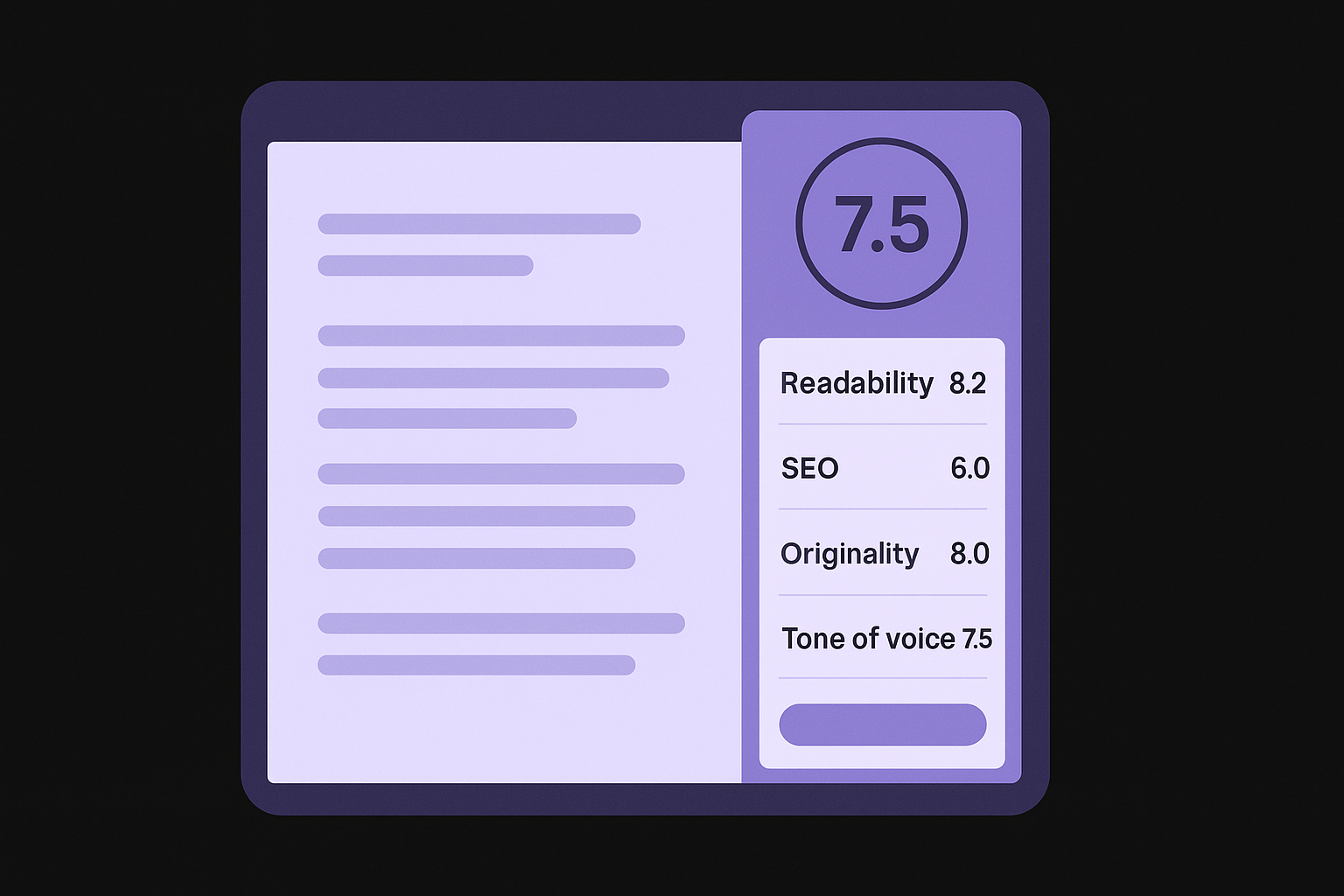
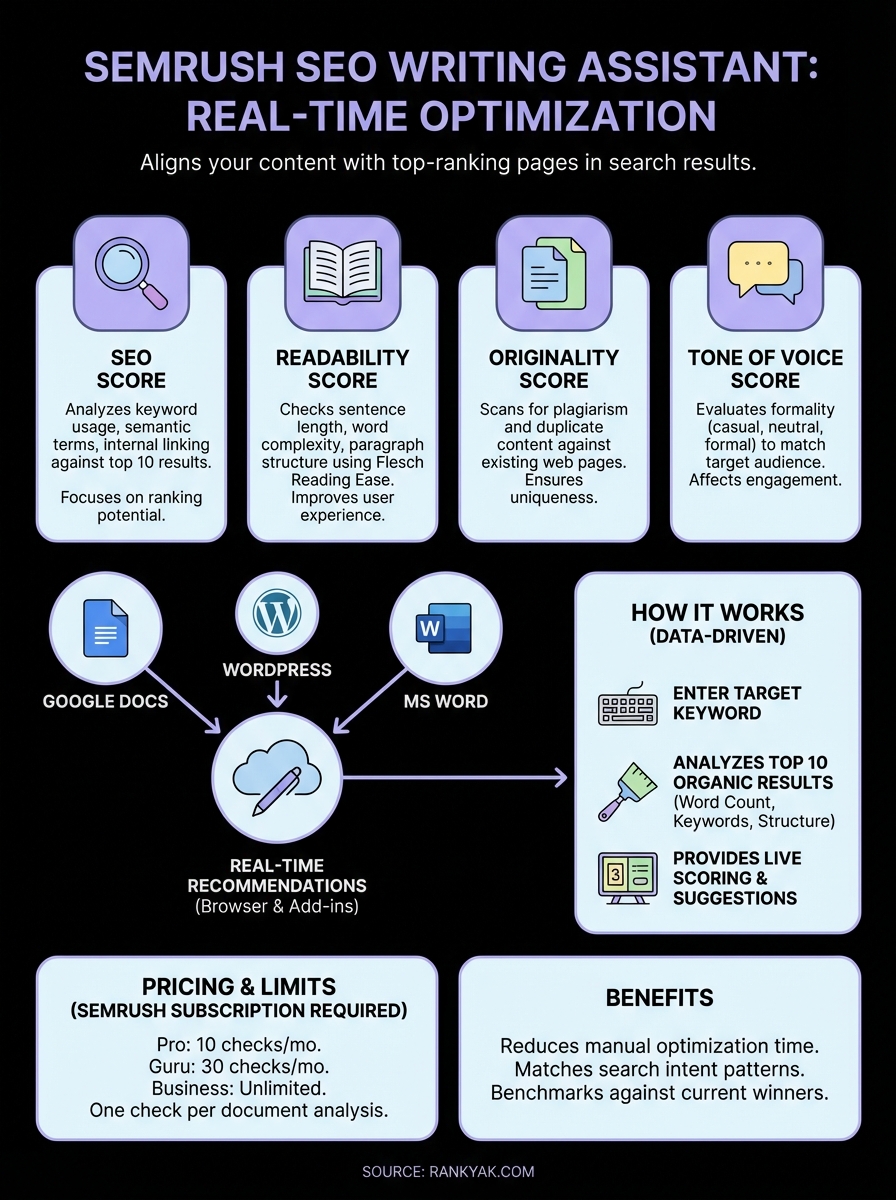
Readability checks focus on sentence length, word complexity, and paragraph structure. The Semrush readability score uses the Flesch Reading Ease formula, the same one a free readability analyzer applies, calibrated against your competitors, so the target difficulty level shifts based on your keyword's niche. The SEO section highlights missing keywords, suggests related terms, and flags opportunities for internal or external links. Originality scans your text for plagiarism and checks whether your content is too similar to existing pages. Tone analysis ensures your writing style matches your target audience, whether that's casual, formal, or neutral.
Beyond scoring, the assistant includes AI Assist actions, much like the best AI writing assistants, that let you interact with your content directly from the sidebar. You can use the built-in AI to rephrase selected passages, compose new paragraphs based on your keyword context, or ask for suggestions to improve specific sections. These AI-powered actions work alongside the scoring system, so you can generate a rewritten sentence and immediately see how it affects your overall score.
The recommendations update live as you type, so you can see your score improve without refreshing or re-running the analysis. This real-time feedback makes it easier to adjust on the fly rather than waiting until you've finished a full draft. You're not forced to accept every suggestion; the tool marks items as "fixed" or "ignored" based on your actions.
What platforms and document types it supports
You can use the SEO Writing Assistant inside Google Docs through a browser extension, directly within WordPress via a plugin, or in Microsoft Word as an add-in. Semrush also offers a web-based version where you can paste content or write from scratch. Each integration works similarly, though the WordPress plugin includes additional features like automatic meta description checks and snippet previews.
The Semrush SEO Writing Assistant Chrome extension is the most common way users access the tool, since it powers both the Google Docs integration and the browser-based editor. Once installed in Chrome or Edge, the extension enables the sidebar panel in any supported environment. The Semrush Google Docs experience is particularly popular because it lets teams collaborate on a document while seeing live SEO scores without switching between tabs or tools.
The tool supports multiple languages, so you're not limited to English content. It analyzes documents based on the language you select when setting up your target keyword. Whether you're drafting blog posts, product pages, landing pages, or guides, the assistant adapts its recommendations to the content type and search intent behind your keyword.
Why it matters for SEO content
SEO content isn't effective just because it includes your target keyword a few times. Optimizing content for search means matching search intent, covering semantic variations, and structuring your writing in ways that signal relevance to search engines. The Semrush SEO Writing Assistant matters because it gives you a benchmark based on what's already ranking, removing the need to manually analyze competitor content or guess which terms to include.
Without a tool like this, you'd spend hours reviewing top-ranking pages, extracting common keywords, and trying to figure out why certain articles outperform others. This assistant compresses that research into a live scoring system that updates as you write. Instead of publishing and hoping for the best, you get immediate feedback on whether your draft meets the standards set by pages that Google already trusts for your query.
The tool shortens the gap between writing content and writing content that actually ranks.
Reduces time spent on manual optimization
Manual SEO optimization requires you to open multiple tabs, read through competitor articles, and manually note patterns in keyword usage, heading outlines, and structure. You then have to cross-reference your draft against those observations, which adds hours to every piece of content. The Semrush SEO Writing Assistant automates this process by analyzing the top 10 results and presenting the patterns in a single interface.
You can see missing keywords, suggested semantic terms, and readability issues without leaving your document. This matters if you're publishing regularly and can't afford to spend half a day optimizing each article. The tool doesn't make decisions for you, but it surfaces the data you'd otherwise gather manually.
Helps you match search intent patterns
Search intent drives what Google chooses to rank. If users searching your keyword expect a how-to guide, but you write a product comparison, your content won't perform well no matter how well-written it is or which SEO writing techniques you applied. The assistant helps you align with intent by showing what content types, structures, and word counts dominate the first page.
When you count the words on top-ranking articles and see they average 2,000 words with step-by-step instructions, you know your 500-word overview won't cut it. The tool doesn't tell you to copy competitors, but it does reveal expectations you need to meet to compete.
Supports AEO content scoring alongside traditional SEO
As AI-powered answer engines like ChatGPT, Gemini, and Perplexity gain traction, content visibility extends beyond traditional Google rankings. The Semrush SEO Writing Assistant's content scoring features indirectly support Answer Engine Optimization (AEO) by pushing you to write comprehensive, well-structured content that covers semantic topics thoroughly. Pages that score well on readability, topical depth, and originality tend to perform better as source material for AI-generated answers, not just standard search results.
While the tool doesn't offer a dedicated AEO score, the combination of semantic keyword coverage, clear structure, and factual completeness it encourages aligns with what AI systems look for when selecting sources. Treating the assistant's recommendations as a baseline for both Google and AI visibility gives you broader coverage from a single optimization pass.
How Semrush builds its recommendations
The Semrush SEO Writing Assistant bases its suggestions on data extracted from search results, not theoretical SEO rules. When you enter a target keyword, the tool scrapes the top 10 organic results from Google and analyzes patterns across those pages. It looks at word count, keyword frequency, semantic terms, readability metrics, and structural elements. Your content gets scored against these patterns, so you're optimizing for what's currently working rather than outdated advice.
This approach means the recommendations shift depending on your keyword and niche. A keyword like "best budget laptops" will produce different benchmarks than "enterprise server management" because the top results for each query follow different content structures and use different terminology. The tool adapts to the competitive landscape of each search term.
The assistant doesn't guess at what Google wants; it shows you what Google is already rewarding.
It starts with analyzing top-ranking pages
Semrush pulls the first page of Google results for your target keyword and runs a crawl to extract text, metadata, and structural elements. The tool identifies common patterns in headline usage, paragraph length, and keyword density across those 10 pages, the same measure a keyword density tool reports for a single URL. If eight out of ten results include a specific term or phrase, the assistant flags that as a recommended keyword for your draft.
The analysis happens server-side before you even start writing, so the recommendations load immediately when you open your document. You're not waiting for real-time scraping; the tool uses its existing search database and refreshes data periodically to keep benchmarks current.
Semantic keyword extraction from competitors
Beyond exact-match keywords, the tool identifies semantic variations and related terms that appear frequently in top-ranking content. These are words and phrases that help Google understand the topic depth and relevance of your article. For example, if you're writing about "email marketing," the assistant might suggest terms like "open rates," "segmentation," or "automation" based on what competitors include.
You'll see these suggested terms listed in the SEO section of the sidebar, along with a count of how many times each term appears in competing pages. This gives you a clear target for which concepts to cover without having to manually skim through competitor articles.
What the scores and checks mean
The Semrush SEO Writing Assistant displays an overall SEO score ranging from 0 to 10, with 10 representing content that closely matches the patterns found in top-ranking pages for your keyword. This score isn't a guarantee your content will rank, but it shows how well your draft aligns with current ranking standards. Below the overall score, you'll see individual ratings for readability, SEO, originality, and tone, each contributing to your final number.
Understanding what these scores actually measure helps you decide which recommendations to address and which to ignore based on your content goals. Each metric functions as a form of real-time diagnostic guidance, giving you a concrete number to improve rather than vague advice.
The overall SEO score breakdown
Your overall score weighs SEO factors more heavily than readability or tone, reflecting what matters most for ranking potential. A score between 8 and 10 suggests your content matches or exceeds the benchmarks set by competing pages. Scores between 5 and 7 indicate room for improvement, typically through adding missing keywords, adjusting word count, or improving structure. Anything below 5 means your draft deviates significantly from what's currently ranking.
The score tells you how competitive your content is against pages that already hold rankings, not how good your writing is in isolation.
Individual metric categories
The readability score measures sentence length, word complexity, and paragraph structure based on the Flesch Reading Ease formula. You'll see specific flags for sentences that run too long or words considered difficult for your target audience. The SEO score tracks keyword usage, semantic term coverage, and whether you've included recommended phrases from top-ranking content.
Originality checks scan your text against existing web pages to flag duplicate content or passages that too closely mirror competitor articles. The tone analysis evaluates whether your writing style matches your audience, identifying formal, casual, or neutral language patterns.
How to prioritize what to fix
Start with the SEO recommendations that involve missing keywords or semantic terms, since these directly affect whether search engines understand your topic. Address readability issues next, focusing on breaking up long sentences or simplifying complex passages that might reduce time on page. Originality warnings require immediate attention if they flag substantial plagiarism, but minor similarity with common industry phrases often doesn't matter.
Tone suggestions matter least for ranking but can affect user engagement, so adjust them based on your brand voice rather than chasing a perfect score.
How to set it up in Google Docs, WordPress, Word
Setting up the Semrush SEO Writing Assistant requires different installation steps depending on which platform you use, but each process takes less than five minutes once you have a Semrush account. You'll need an active subscription or trial to connect the tool to your documents, and the setup happens through extensions, plugins, or add-ins specific to each platform. Here's how to use the Semrush SEO Writing Assistant on each supported platform.
Installing the Google Docs extension
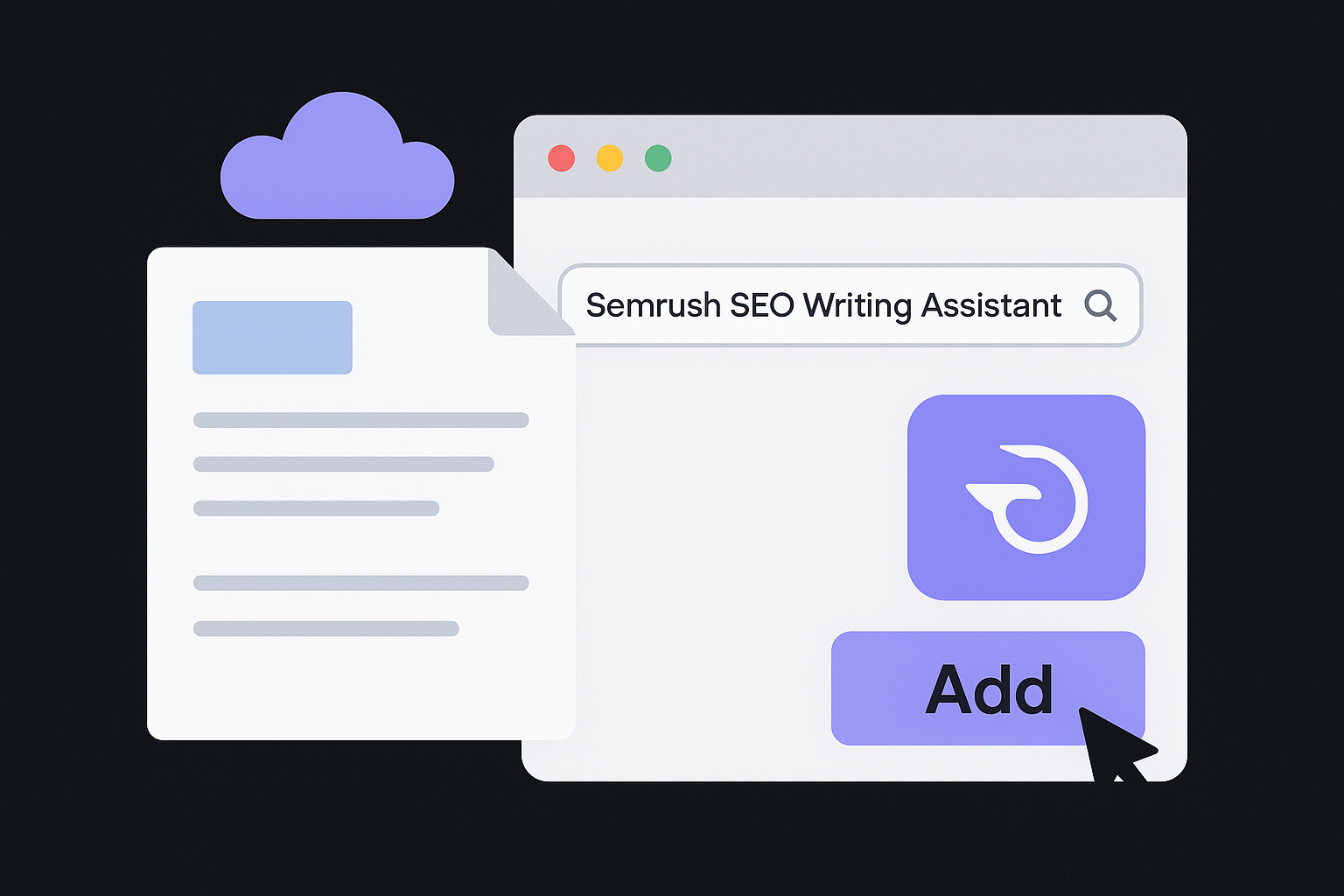
You install the Google Docs version through the Chrome Web Store by searching for "Semrush SEO Writing Assistant" and clicking the add button. This is the same Semrush Writing Assistant Chrome extension that also powers the browser-based editor, so one installation covers both use cases. Once installed, open any Google Doc and navigate to Extensions in the top menu, then select Semrush SEO Writing Assistant from the dropdown. A sidebar appears asking you to log into your Semrush account and authorize the connection.
After logging in, you enter your target keyword and select your target audience location. The tool runs its initial analysis against top-ranking pages and displays your baseline score. You can now write or edit your document while recommendations update in real time on the sidebar.
The Google Docs version works only in Chrome or Edge browsers, so you can't use it in Firefox or Safari.
Setting up the WordPress plugin
WordPress users install the Semrush SEO Writing Assistant WordPress plugin directly from their dashboard by going to Plugins, clicking Add New, and searching for "Semrush SEO Writing Assistant." After installation and activation, you'll see a new Semrush icon in your post editor toolbar. Click that icon to open the assistant panel, then log into your Semrush account to connect the plugin.
The WordPress version automatically detects your post title and content, but you still need to specify your target keyword manually. The plugin displays scores and recommendations in a sidebar that stays visible as you edit, similar to the Google Docs interface. It also includes snippet preview functionality, so you can check how your title and meta description will appear in Google before publishing.
Adding the Word add-in
Microsoft Word requires downloading the add-in through the Office Add-ins store within Word itself. Open Word, click Insert in the ribbon, then select Get Add-ins and search for Semrush. After installing, the assistant appears as a sidebar panel accessible from the Home tab. The Word 365 version supports the same scoring for readability, tone, and originality as the other platforms.
You'll need to sign into your Semrush account each time you open Word unless you save your credentials. Enter your target keyword and the tool analyzes your document against ranking benchmarks just like the other versions.
Limits, pricing, and common troubleshooting
The Semrush SEO Writing Assistant requires an active Semrush subscription to function at full capacity, and different pricing tiers affect how many documents you can analyze each month. Understanding these limits before you commit helps you avoid surprises when you hit usage caps or encounter technical issues during setup.
What's included in each plan
Semrush offers the SEO Writing Assistant across three main subscription levels: Pro, Guru, and Business. As of 2026, the Pro plan ($139.95/month) includes 10 SEO Writing Assistant checks per month, while Guru ($249.95/month) bumps that to 30 checks. Business plans ($499.95/month) provide unlimited checks along with additional team features. Each check counts as one analyzed document, regardless of how many times you edit or re-score that same piece. Verify current pricing on Semrush's website, as rates can change between billing cycles.
If you're wondering whether the Semrush SEO Writing Assistant is free, there is a limited option, and there are also free content optimization tools worth testing. Free Semrush accounts can access the Writing Assistant but are restricted to a very small number of checks, typically just enough to test the tool's interface and scoring. You won't get enough monthly checks to support any real publishing cadence on the free tier.
You also get access through a 7-day free trial of any paid plan that includes assistant checks, letting you test the full feature set before committing. Once your monthly allocation runs out, you can't analyze new documents until your billing cycle resets or you upgrade your plan.
Usage caps and document limits
Each time you connect the Semrush SEO Writing Assistant to a new document and enter a target keyword, you consume one check from your monthly quota. Re-opening and editing an already-analyzed document doesn't use additional checks, so you can revise scored content without penalty. However, if you delete that document and start fresh with the same keyword, you'll burn another check.
Your check quota resets on your billing date, not at the start of each calendar month.
Document length doesn't affect your usage count, so a 500-word article costs the same as a 5,000-word guide. The tool caps individual analysis at 50,000 words, though you'll rarely hit that limit with standard web content.
Common errors and how to fix them
Connection failures usually stem from browser cache issues or outdated extensions. Clear your browser cache, restart your browser, and verify you're running the latest version of Chrome or Edge. If the sidebar won't load in Google Docs, disable other extensions temporarily to check for conflicts. This is the most common issue reported with the Semrush SEO Writing Assistant Chrome extension, and reinstalling it from the Chrome Web Store usually resolves persistent problems.
Authorization errors typically mean your Semrush session expired. Log out completely from Semrush, close all browser tabs, then log back in through the assistant interface. WordPress plugin errors often require deactivating and reactivating the plugin, then clearing your WordPress cache through your hosting panel.
What to do next
The Semrush SEO Writing Assistant gives you real-time feedback based on what's currently ranking for your target keywords. You now understand how it scores your content, what each recommendation means, and how to install it across Google Docs, WordPress, and Word. The tool works best when you treat its suggestions as data-driven guidance rather than strict rules to follow blindly.
If you're publishing regularly and find yourself spending hours optimizing each article manually, you might benefit from a more automated approach. RankYak handles everything from keyword research to content creation and publishing, eliminating optimization work entirely. Your content gets optimized for Google and AI chat platforms automatically, and RankYak's plans come with none of the subscription limits or monthly check quotas that tools like the Semrush SEO Writing Assistant require. You focus on your business while the system publishes daily SEO-optimized articles without manual intervention.
Test optimization methods on a few articles before committing to any single tool or platform.
Allan de Wit is a co-founder of RankYak and has worked in SEO since 2015: inside agencies, alongside them, for clients directly, and in-house on the products being ranked. He came to it as a software engineer building for marketers, which is why the platform is built the way it is. He went on to start companies of his own, two of which were acquired. At RankYak he sets the product direction and owns the features, the quality bar, the design, and the UX.