Grammarly AI Writing Assistant: Features, Prompts, and How-To Guide
Staring at a blank screen sucks. You know what you want to say but finding the right words drags on for hours. Your drafts feel clunky and generic, or worse, they sound like every other piece of content out there. If you're spending too much time wrestling with writer's block or rewriting the same paragraph five times, you need a better approach. That's where the Grammarly AI writing assistant comes in.
This tool goes beyond basic grammar checks. It helps you brainstorm ideas, generate drafts, and rewrite existing content so it flows better and sounds more natural. You can customize prompts to match your voice and get suggestions that actually make sense for what you're writing. The AI works alongside your editing process instead of replacing it.
This guide walks you through exactly how to use the Grammarly AI writing assistant to speed up your content creation. You'll learn how to launch the tool, brainstorm topics and outlines, compose drafts with custom prompts, and rewrite sections for better clarity. By the end, you'll know how to turn this assistant into your go-to writing partner.
Core features of the AI writing assistant
The Grammarly AI writing assistant packs several tools into one interface. You access these features through a dedicated panel that appears alongside your document or text editor. Each feature targets a specific part of the writing process, from initial ideation to final polish.
The full set of Grammarly AI writing assistant features splits into two categories: traditional writing assistance (grammar, tone, clarity) and generative AI capabilities. The traditional side catches errors, flags unclear phrasing, and works like a built-in readability analyzer that scores your text in real time. The generative AI assistance side handles content creation, rewriting, and brainstorming. Both layers work together inside the same editor, so you're never switching between tools.
So does Grammarly use AI? Yes, on both sides. The grammar and clarity engine runs on natural language processing models Grammarly has refined for more than a decade, while the generative features run on large language models trained specifically for writing tasks. That's why Grammarly belongs among the best AI writing assistant tools even for users who only touch the free grammar checker and never open the generative tools.
Text generation and drafting
This feature handles AI-powered content generation, creating original content based on your prompts. You tell the AI what you need (a blog intro, email response, product description) and it generates a first draft. The output adapts to different tone settings like professional, casual, or confident.
This isn't limited to short snippets, either. Some writers use the same feature as a Grammarly AI essay writer or article generator, feeding it a thesis statement or working title and letting it draft full sections they then edit down. It won't replace your research or your argument, but it removes the blank-page problem for longer-form pieces like essays, articles, and reports.
You can regenerate responses multiple times until you find one that matches your needs. Each iteration considers your previous feedback if you refine your prompt. The Grammarly AI prompt manager plays a central role here, letting you store and organize your most-used prompts so you don't retype instructions every session. This is one of the more practical Grammarly AI prompt manager features for anyone producing content regularly.
Content transformation
The rewrite function takes your existing text and restructures it for better clarity or impact, much like a dedicated AI paraphrasing tool. You choose options like "make it more concise," "improve clarity," or "adjust tone." The AI analyzes your sentence structure and suggests alternatives.
The tone rewrite option deserves specific attention. It lets you shift an entire paragraph from formal to conversational (or the reverse) without manually rewriting each sentence. This is especially useful when repurposing content across channels, such as turning a white paper excerpt into a LinkedIn post.
These rewrites keep your core message intact while changing how you deliver it. The function works on everything from single sentences to full paragraphs.
One question that comes up a lot: can Grammarly rewrite AI text without it reading as AI-generated? The rewrite tool restructures sentences and varies word choice, which can lower detection scores on tools like Originality.ai, but Grammarly doesn't market itself as a humanizer and results vary by detector. If you're rewriting AI-drafted content, treat the rewrite as a clarity pass, not a guaranteed way to dodge AI detection.
Brainstorming and outlining
When you're stuck on what to write, the AI generates topic ideas and outlines. You provide a general subject or goal, and it returns multiple content angles to explore.
The outline feature breaks down complex topics into sections with suggested talking points, similar to what a free content brief generator produces. Both tools give you a framework to build from instead of starting completely blank. You can also use the Grammarly AI chat interface to have a back-and-forth conversation about your topic, asking follow-up questions to narrow your angle before committing to a structure.
The AI doesn't replace your expertise. It speeds up the parts of writing that typically slow you down.
Each feature integrates with Grammarly's real-time editing suggestions, so you get grammar, tone, and clarity feedback as you work with AI-generated content. The tools run in your browser, desktop app, mobile app, or directly in platforms like Google Docs.
Step 1. Launch the generative AI tool
You access the Grammarly AI writing assistant through a dedicated button that appears in your editor. The location depends on whether you're using the browser extension, desktop app, or native integration with platforms like Google Docs. Once you open a document or text field, the AI tools become available through Grammarly's interface.

Locate the AI button in your editor
Look for a small circle icon with Grammarly's logo at the bottom right of your text field or document. Click this icon to open the main Grammarly panel. Inside this panel, you'll see a "Get AI help" button or similar generative AI prompt field near the top or bottom of the suggestions area.
The exact label varies based on your subscription tier and the platform you're using. Free users may see limited AI features, while premium subscribers get full access to generative tools. As of 2026, Grammarly offers three main plans:
- Free: Basic grammar, spelling, and punctuation checks. Limited generative AI prompts per month.
- Pro: Full access to all Grammarly AI writing assistance features, including unlimited generative AI prompts, tone rewrite, the AI prompt manager, and advanced clarity suggestions.
- Enterprise: Everything in Pro plus team-level controls, brand tone profiles, style guides, and admin analytics for organizations.
Worth knowing: Grammarly's parent company rebranded as Superhuman in 2025, bringing Grammarly, Coda, and the Superhuman email app under one brand. The plans and features described in this guide haven't changed because of it, so everything here still applies whether you signed up before or after the rebrand.
If you're evaluating whether the upgrade is worth it, the Pro plan unlocks the Grammarly AI editor features that handle most of what this guide covers.
Activate the AI panel
Click the AI button to open a prompt field. This field lets you type instructions directly or choose from preset options like "Brainstorm," "Compose," or "Rewrite." The panel stays open while you work, so you can switch between tasks without closing and reopening it.
You'll also find access to the AI prompt manager from this panel. The prompt manager stores your custom prompt templates so you can reuse them across documents. You can organize saved prompts by category (emails, blog posts, social content) and edit them without starting from scratch each time.
The AI panel operates independently from Grammarly's real-time grammar suggestions, which continue running in the background.
Step 2. Brainstorm ideas and outlines
The brainstorming feature generates topic ideas and content structures when you need direction. You use this when you know your general subject but haven't figured out the specific angle or approach. The AI analyzes your input and returns multiple suggestions you can develop further.
Enter your topic or goal
Type a general subject or describe what you're trying to accomplish in the prompt field. For example, "blog post ideas about email marketing" or "outline for a product comparison article." The Grammarly AI writing assistant processes your request and generates several options within seconds.
Keep your input specific enough to get relevant results but broad enough to allow creative suggestions. Adding context like your target audience or desired outcome helps the AI tailor its responses. For instance, "outline for a beginner-friendly guide to cold email outreach targeting SaaS founders" produces sharper results than just "cold email guide."
Review and select ideas
The AI returns a numbered list of ideas or an outline with main sections and subpoints. Scan through these suggestions and pick the ones that align with your goals. You can click "Regenerate" to get different options if the first batch doesn't fit.
Save the ideas you like by copying them into your document before closing the AI panel.
Once you select an outline, you can use it as a framework to start writing or feed it back into the AI to generate actual draft content for each section, which is the core of using AI for blog posts. If you find a brainstorming prompt that works well for your niche, save it to the AI prompt manager so you can reuse it on future projects without retyping.
Step 3. Compose drafts with custom prompts
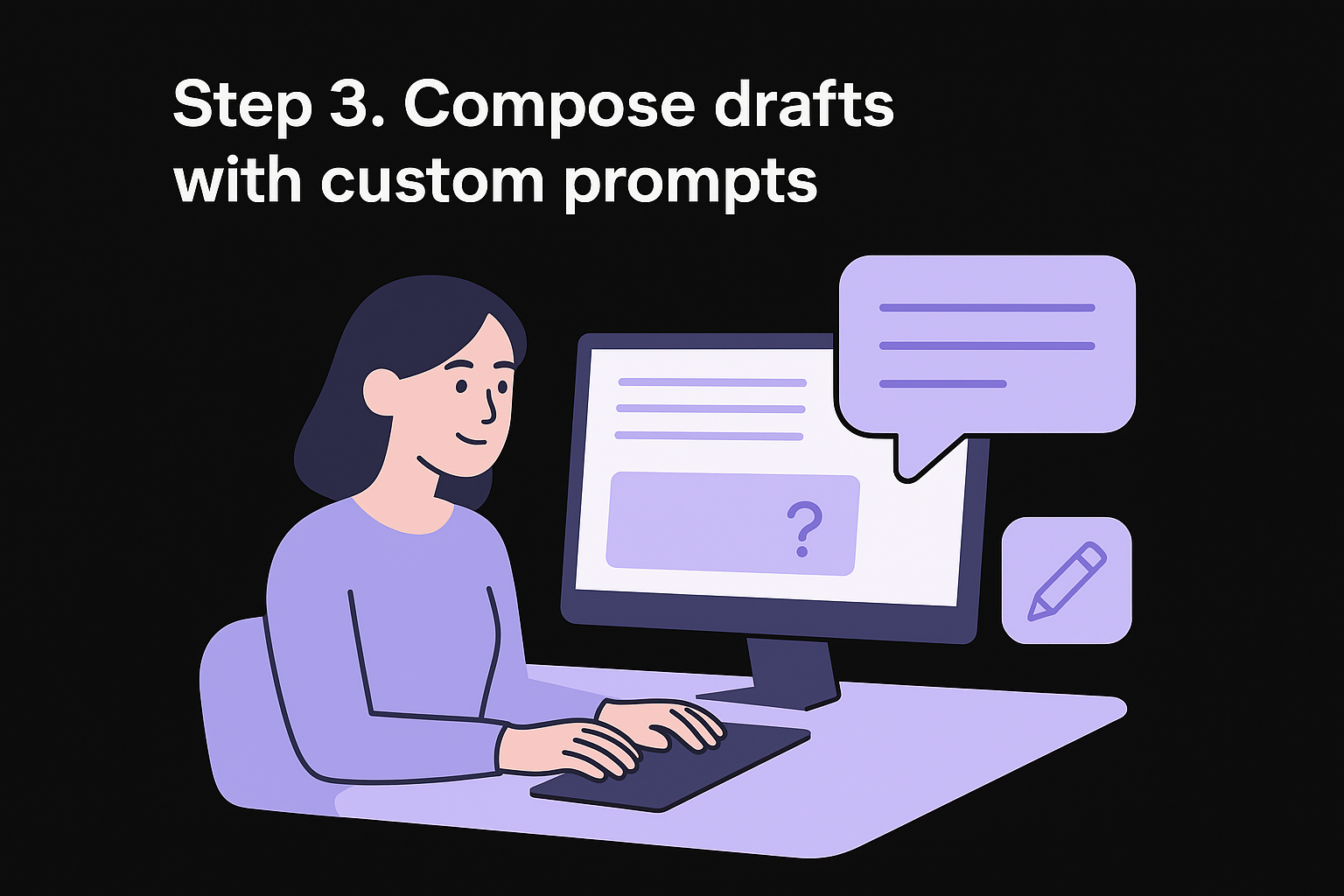
The compose feature generates complete text sections when you provide clear instructions. You tell the Grammarly AI writing assistant what you need written, specify the context, and let it create a first draft. The quality of your output depends on how you structure your prompt, the same rule that governs any practical AI writing workflow.
Write effective prompt instructions
Your prompt needs three elements: what to write, the intended audience, and the desired tone. Instead of "write an email," try "write a professional follow-up email to a client who hasn't responded to our proposal in two weeks." The added context produces more usable results.
Use these prompt templates to get started:
- Blog intro: "Write an engaging introduction for a blog post about [topic] targeting [audience] in a [tone] tone"
- Email response: "Draft a [tone] email responding to [situation] for [recipient type]"
- Product description: "Create a [length] product description for [product] highlighting [key features] for [target customer]"
One of the most useful Grammarly AI prompt manager features is the ability to save these templates with placeholder variables. You create the prompt once, then swap in new details each time you use it. This cuts setup time significantly when you're producing similar content types repeatedly, such as weekly newsletters or client reports.
Refine generated content
Click "Generate" and wait for the AI to return your draft. Read through the output and identify sections that need adjustment. You can regenerate the entire response or modify your prompt with more specific instructions.
The Grammarly AI assistant flags grammar, tone, and clarity issues in generated text automatically. So even before you start manual edits, the editor highlights sentences that are too long, passive constructions that weaken your point, or tonal inconsistencies. Treat these flags as your first editing pass.
Copy the generated text into your document only after you've reviewed it for accuracy and relevance.
Edit the draft to match your brand voice and add details the AI couldn't know. The tool provides a foundation, not a finished product.
Step 4. Rewrite text for better flow
The rewrite function transforms existing content that sounds awkward or unclear. You select any section of your draft and let the Grammarly AI writing assistant restructure it for better readability. This works particularly well when your first draft gets the ideas across but the sentences feel choppy or overly complex.
Select text that needs improvement
Highlight the specific paragraph or sentence you want to improve. Right-click or click the AI button to open the rewrite menu. You'll see options like "Improve it," "Make it clearer," "Make it more concise," or "Change tone."
Each option produces a different version of your text while keeping the core meaning intact. The "Improve it" option gives you a general enhancement, while specific choices like "Make it concise" target exact issues.
The grammar, tone, and clarity scores in the sidebar update in real time as you apply rewrites. Watch these scores to confirm that your changes are actually improving the text rather than just shuffling words around. A rewrite that improves clarity but tanks your tone score might not be the right trade-off.
Apply rewrite options
Click your preferred option and review the suggested rewrite. The AI returns multiple alternatives you can cycle through using arrow buttons. Compare each version to your original text and pick the one that sounds most natural.
Test different rewrite options on the same text to see which approach delivers the best results for your specific content.
Insert the rewritten version directly or use it as inspiration to manually edit your draft. You can apply this process to every paragraph until your entire piece flows smoothly, then run your usual content editing checklist over the result.
One thing worth noting: the Grammarly AI writing assistant is designed with responsible AI principles. Generated and rewritten content is not stored or used to train models on your proprietary data (per Grammarly's enterprise privacy commitments). For teams handling sensitive documents, this matters more than convenience features.
Streamline your content creation
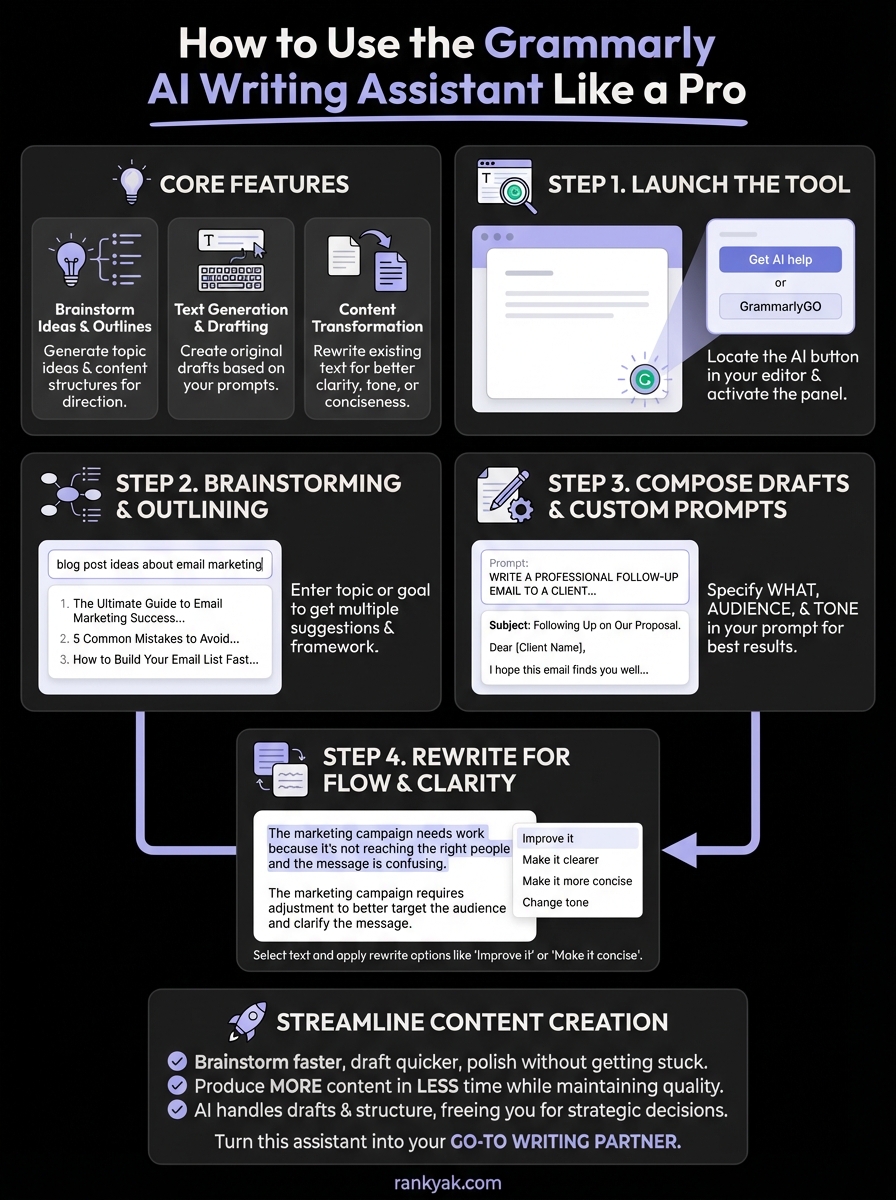
The Grammarly AI writing assistant speeds up every stage of your writing process. You brainstorm faster, draft content quicker, and polish your work without getting stuck on awkward phrasing. Each feature handles a specific bottleneck that typically slows writers down, from blank page anxiety to endless revisions.
Using these tools consistently means you produce more content in less time while maintaining quality. The AI handles initial drafts and structural improvements, freeing you to focus on strategic decisions and final touches that require human judgment. The combination of generative AI features with traditional grammar and clarity checks means fewer tools and fewer context switches throughout your workflow.
But if you're managing an entire content pipeline across multiple projects or websites, manual work still adds up. That's where RankYak's automated content pipeline takes automation further, handling keyword research, content planning, article generation, and publishing on autopilot. You get fully optimized articles every day without juggling different tools or prompts. The platform combines AI writing with SEO optimization and automatic publishing so your content creation runs itself.
Allan de Wit is a co-founder of RankYak and has worked in SEO since 2015: inside agencies, alongside them, for clients directly, and in-house on the products being ranked. He came to it as a software engineer building for marketers, which is why the platform is built the way it is. He went on to start companies of his own, two of which were acquired. At RankYak he sets the product direction and owns the features, the quality bar, the design, and the UX.